The first card you cut from a Commander precon usually gets a careful little spot beside the deck box. The fifth goes on top of it. Three games later, somebody borrows a sleeve, the stack gets moved to a binder, and you can’t remember whether that binder copy was one of the cuts or an extra you owned already. If you want to track Commander precon upgrades, that tiny pile is where the trouble starts.
The five Foundations Commander decks released October 2 with published lists from Wizards. Calling All Angels is a handy example because we’ve already written about five swaps we’d try in it. The choices are debatable. Keeping track of which 100 cards are physically in the box shouldn’t be.
Track Commander precon upgrades in two places
I treat the printed list as a photograph of the deck on opening day. The sleeved deck is the thing that changes. Mixing those two up creates a particularly annoying question six months later: did the precon originally contain this card, or did I put it in during the week I was obsessed with Equipment?
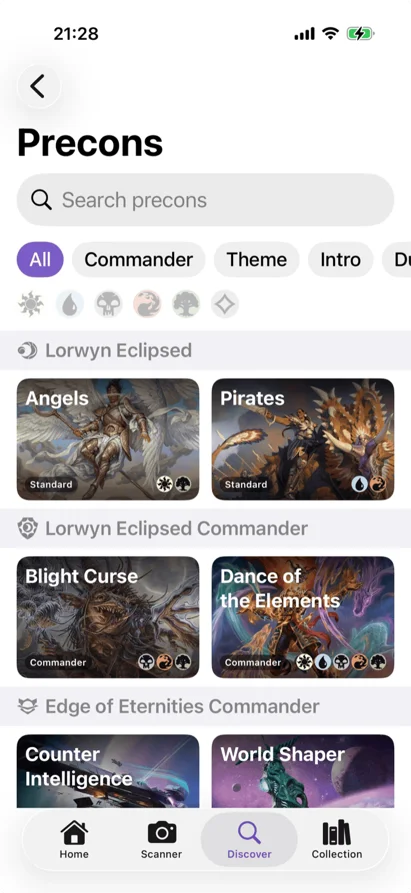
Eldwyn makes the split straightforward. In Decks, tap +, then Browse Precons. Open the deck and use Save as Decklist to keep the original list as a reference. If this is a new, unlogged box sitting in front of you, Add as Deck creates a physical deck in your collection from that precon’s list. The Precons browser also shows how many cards from a deck you already own, which is useful if you’re thinking of assembling one from your collection instead of buying it.
That reference list stays separate from the physical deck. Change the deck as much as you like; you still have the original list to consult. Eldwyn doesn’t need a handwritten spreadsheet of all 100 names to make that possible. I might still put a note in the physical box with the date I opened it, mostly because I write things on deck boxes and then immediately forget what the abbreviations meant.
One caution before pressing Add as Deck: it adds owned-card entries for the precon. If you’ve already scanned those exact cards into Eldwyn, importing the precon as another physical deck would count them twice. Make an empty deck and move the existing entries into it instead. The app’s Move Card action changes where an owned copy lives; it doesn’t pretend you bought another copy. The same distinction matters for cards you’ve already sleeved into other decks. Owning a card and having it available for this deck are different questions.
The published list is still worth keeping even if the physical deck was scanned long before you found the Precons browser. It’s a clean baseline for the name and printing checks you’ll eventually do. Eldwyn can show both the fixed decklist and your changing physical deck without asking you to preserve the first version in an increasingly mysterious pile of cut cards.

Make the swap in the deck and the collection
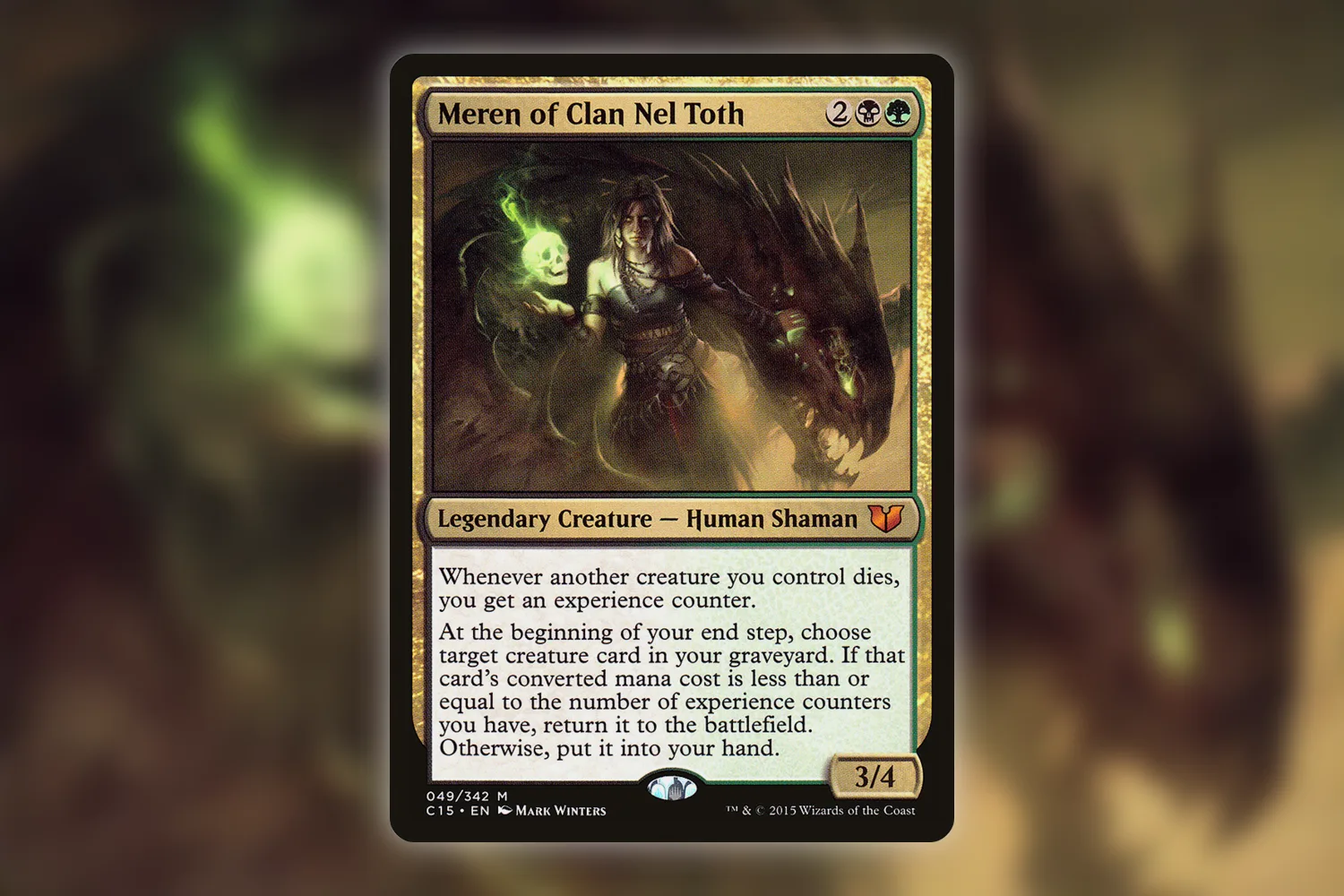
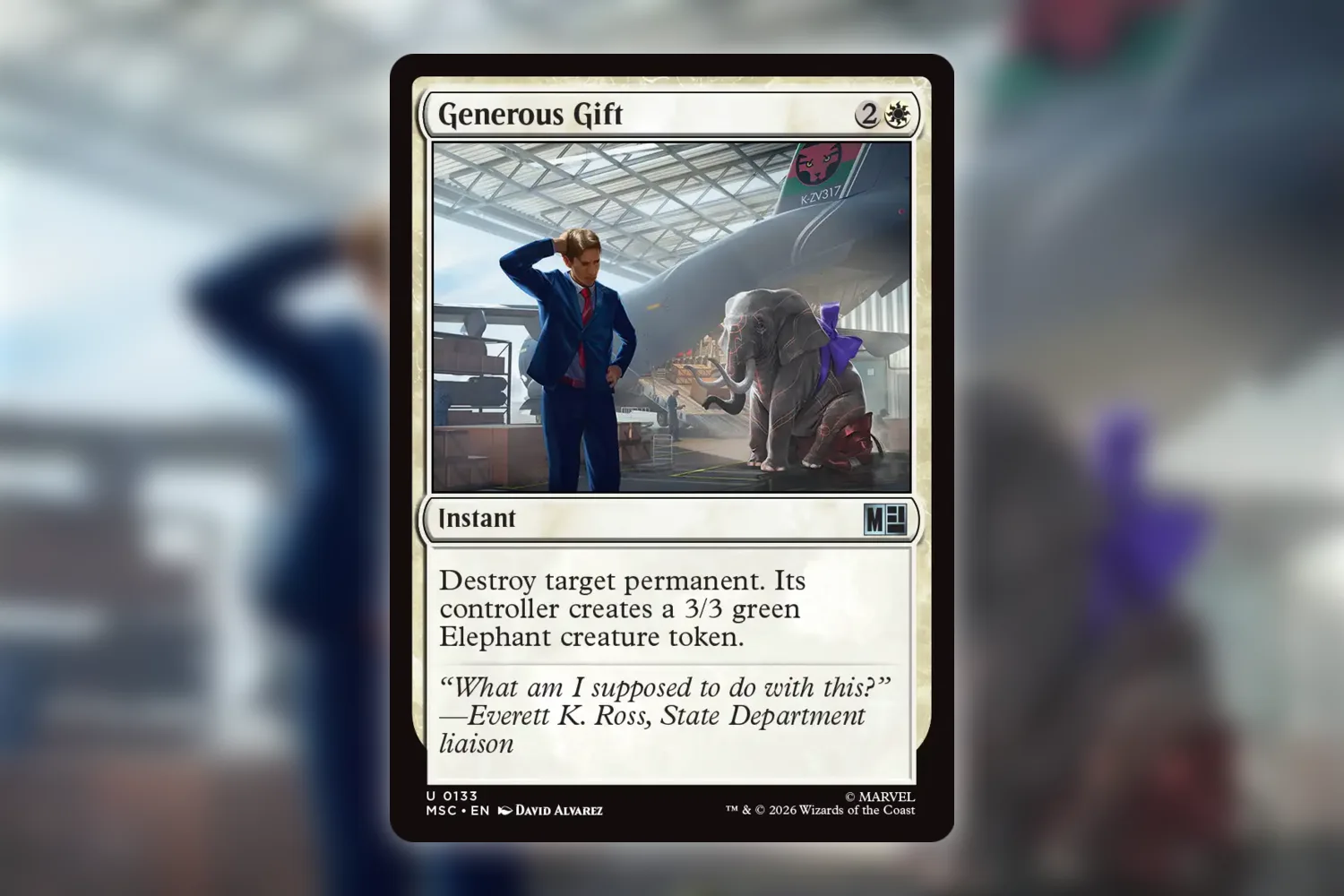
Take Giada, Font of Hope’s Calling All Angels deck. Our earlier upgrade post suggests cutting Search the Premises for Mask of Memory. You can disagree with that swap. I can too, depending on the table. It’s still a useful example because the paper job has two halves: take Search the Premises out of the sleeve stack and put the Mask in. The collection job has the same two halves.
Open the physical deck in Eldwyn, find Search the Premises, and use Move Card to put the owned copy in the binder or other container where the cut card actually went. Find your Mask of Memory in the collection and move that copy into the deck. If the Mask is a new purchase, add or scan it directly into the deck instead. The deck view offers Scan Cards and Search Cards, with the deck selected as the destination, so you don’t have to add it to an unsorted binder and move it a second time.
So, yes, it’s two taps around two pieces of cardboard. Well, more than two taps. You know what I mean. The point is to move the same physical copy you’re moving on the table. If a card leaves one deck for this one, its previous home changes too. If you borrowed it from a friend, it shouldn’t quietly become an owned copy in your collection. And if you test an upgrade for one game and swap back, move the entries back when you resleeve the deck. I would forget that last part at least once.
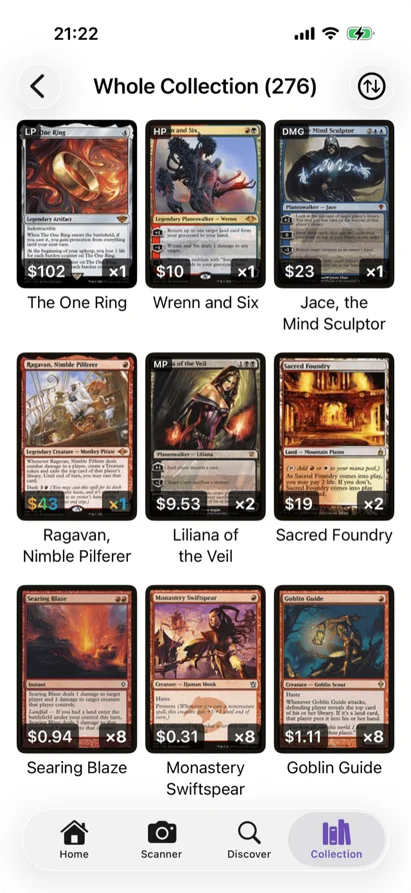
The collector number and finish are worth a glance while you’re doing this. A foil copy of the Mask and an older regular printing can have the same rules text, but they’re different objects in your collection. The original Calling All Angels Giada is a foil precon printing. If you replace it with a different Giada, track the actual card that moved. The guide to identifying a printing helps when two copies look almost the same in a sleeve.
There’s an argument for leaving all this alone until a deck is settled. Commander decks are rarely settled, though. A three-card experiment on Friday becomes a different three-card experiment after your pod points out that you forgot graveyard interaction. I don’t think every tentative deck idea needs meticulous bookkeeping. Once cardboard leaves its usual binder or box, I do want to know where it went.
What to do with the cuts
The cut cards are still yours. Put them in one clearly named binder or container if you like having the option to restore the precon. A small labeled section inside the deck box works physically, too, until the stack gets big enough to bend the lid. In Eldwyn, those cards can sit in their real location while the untouched reference decklist tells you which ones belonged to the original 100.
After a few games, you can save the physical deck’s current build as another decklist. Eldwyn won’t save two decklists with the same name, so rename the physical deck first if the original precon list already uses that name. “Calling All Angels, October build” would leave the untouched “Calling All Angels” reference alone. I wouldn’t make a new snapshot after every one-card experiment, although I can see why somebody testing the same deck every Tuesday might.
The cards-sleeved-in-decks problem gets much easier once the app knows where those copies live. A decklist snapshot remembers a configuration; the physical deck tracks the cards you own and where they are.
If you end up dismantling the deck, move the cards back to their physical homes rather than deleting them from the collection. And check the little pile by the deck box before you declare the job finished. Search the Premises is probably still under the tokens.