The annoying part of an MTG collection backup is remembering how much information you’ve put into the thing. Card names, sure. Also which edition you own, which copies are foil, the condition of that battered rare, and whether the card is in your trade binder or halfway across town in somebody else’s deck. Rebuilding those records would take considerably longer than downloading an app onto a replacement phone.
I’d rather spend a few minutes saving an export while everything is working. In Eldwyn on iOS, you can export the collection to a CSV file and later import that file to rebuild supported collection records. There are a few limits worth understanding before you treat the file as your emergency plan, especially if the app already contains cards when you import it.
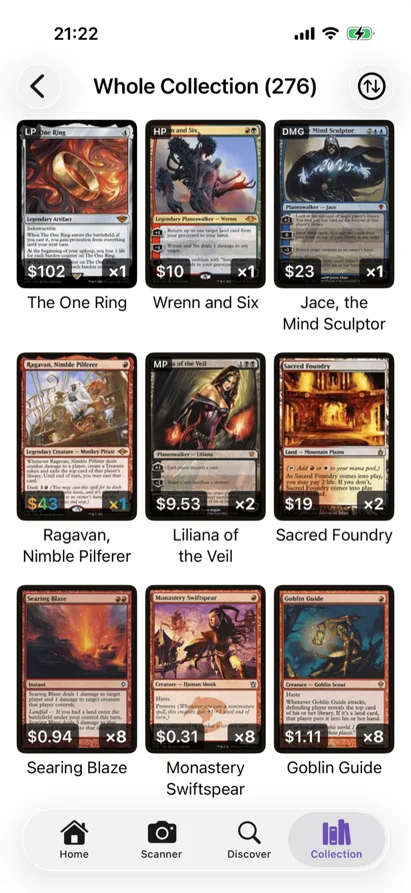
Make an MTG collection backup you can reach without your phone
Open Eldwyn’s Settings, find the Collection section, and tap Export Collection. Eldwyn prepares a CSV and opens the iOS sharing sheet. Choose Save to Files and pick a location you can reach from another device, such as a folder in iCloud Drive.
The suggested filename includes the export date: Eldwyn_Collection_2026-10-27.csv, for example. Keep the date. If you’re exporting twice in one day, add something useful to the saved name, like before-binder-cleanup or after-trades, so you can tell the copies apart later.
Then open Files and find the actual saved file. Check its name and open it. If you’ve only opened the sharing sheet and dismissed it, you haven’t finished saving a copy anywhere you chose.
For a second copy, send the file to your computer or another storage location you already use. “On My iPhone” is handy for moving files around on that phone; I’d choose somewhere else for the copy intended to survive losing it. You can keep a local copy too, if that makes checking it easier.
I don’t know which storage service you’ll still be using in five years. Pick something ordinary that you can open today. A folder called Eldwyn exports beats an elaborate archiving system you have to remember how to operate.
Eldwyn stores your collection locally on the device, as explained in its privacy policy. There isn’t an Eldwyn account you sign back into to download a server-held collection. The app’s background data downloads update its card reference data; saving your collection export is a separate action.
Apple’s iCloud Backup documentation explains that device backups include app data that isn’t already syncing to iCloud. Check your own backup settings and available storage before relying on that route. Saving a CSV to iCloud Drive gives you a separately accessible file; Apple’s device-restore process involves restoring a device backup during setup. Those are different recovery options, and I like having the readable file available too.
What’s actually in Eldwyn’s export
Export Collection covers binders, physical decks, boosters, cubes, decklists, card lists, and loans. The file identifies the container each record belongs to. That separation matters if you have a built Commander deck and a proposed list with many of the same cards.
For card records, the export includes the card name, set code, collector number, Scryfall ID, finish, quantity, language, and condition. It also carries supported details such as tags, custom notes, grading information, custom values, and acquisition sources. Different record types have their own relevant fields: decklists carry board information, wishlists can carry target prices, and loans carry borrower and return details.
Empty containers get a record too. An empty cube can retain its name, target size, singleton setting, and notes through the export and import. That’s useful if you’ve spent an evening deciding what the cube should become and haven’t added the cards yet. I have some sympathy for spending longer naming a cube than choosing its first fifty cards.
There are distinctions inside the card rows. Deck and cube placeholders represent cards still wanted for those builds, so the export includes them with a Placeholder flag. Binder and booster memo placeholders are omitted. A loan record describes cards already represented in their source container. Adding every Quantity cell in the entire file would mix owned cards with plans and loan records.
For a spot-check of physical ownership, look at binder, deck, booster, and cube records with Placeholder set to false or blank. Use Quantity rather than counting rows. Our collection-count audit goes further into that particular mess; here I’d just record a few known quantities beside the backup.
The CSV doesn’t include the app’s collection-value history or its settings. Its column set also doesn’t contain a dated market-price snapshot. A Custom Value or a loan’s Reference Value can travel in its own field, but those have their own meanings. If you want a record of what the collection total showed on export day, save that separately and label the date and currency.
Check a handful of records before filing it away
Open a copy of the CSV in a spreadsheet or a CSV viewer. Keep the original export untouched, especially if the spreadsheet offers to change the file’s formatting when you save.
Choose records that would expose different mistakes. A nonfoil card with several copies. A foil. A card in a named deck. An entry with a note or condition you bothered to record. If you use loans or cube placeholders, check one of those as well.
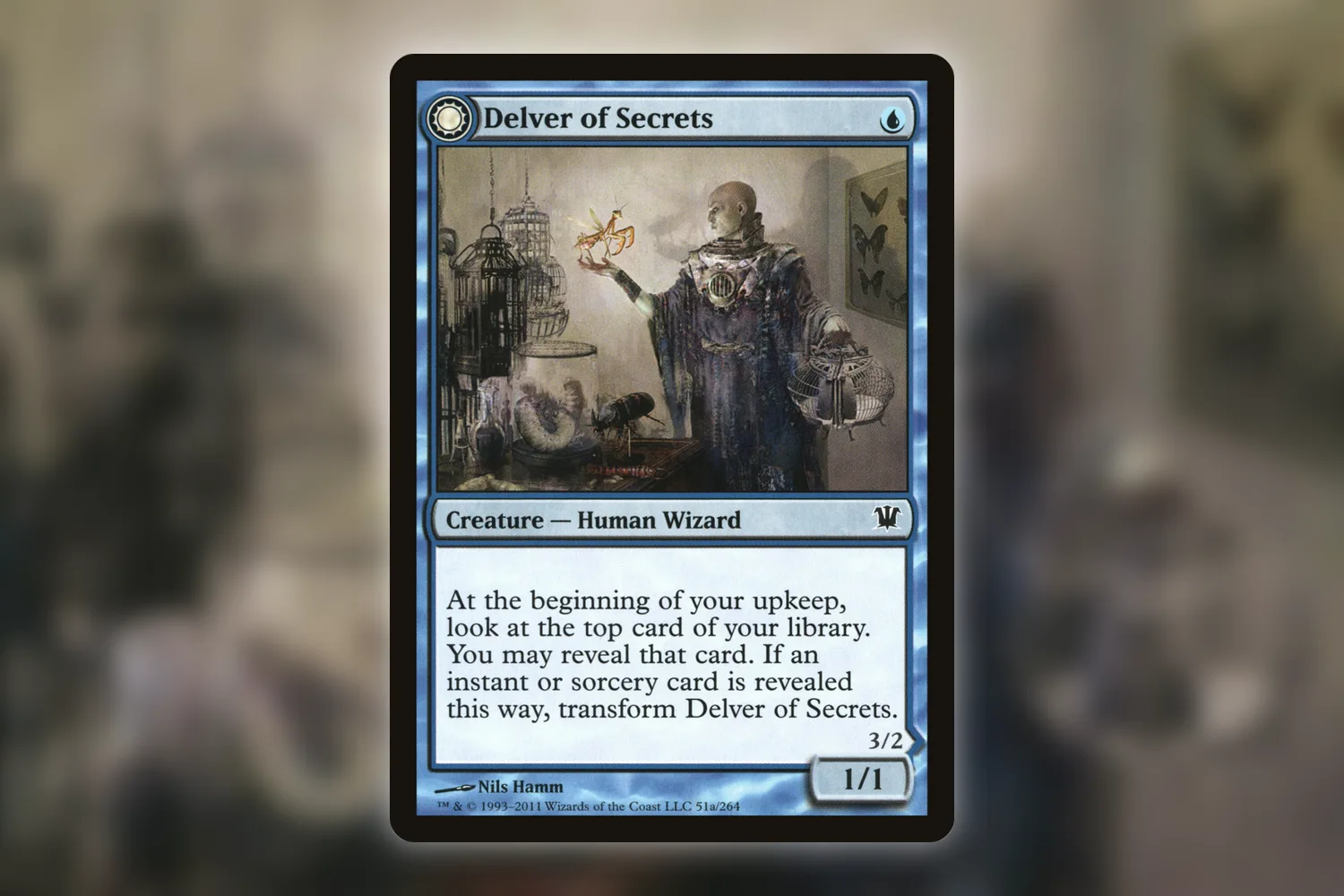
Delver of Secrets is a useful example if you own it: two faces belong to one physical card. Check the edition and owned quantity in the export rather than expecting a second owned copy for the reverse face. The double-faced card guide covers how Eldwyn displays and identifies those cards.
I’d write a tiny accompanying note: “Trades binder: 143 owned cards. Burn deck: 60 main, 15 sideboard. Checked one foil and one loan.” Use your actual numbers, obviously. The point is to leave a few things you can compare later without remembering what the collection looked like that evening.
Okay, export. Save it. Open it from the place you saved it. That’s the small job. The spreadsheet inspection can expand into an entire evening if you let it, because you’ll notice a condition you never fixed, then a card in the wrong binder, then somehow you’re sorting basic lands. Leave that for another day.
I was going to recommend exporting every week. Actually, for a collection that barely changes, that’s a chore looking for a reason to exist. I’d export after a substantial scanning session, a big trade, or a reorganization, and before changing phones. Keep a couple of older dated exports alongside the latest one so yesterday’s accidental edit doesn’t become your only surviving record.
Importing a backup creates another collection of records
On a replacement installation, go to Settings, Collection, Import Collection, and select the saved CSV. Eldwyn asks for confirmation before importing. Read that message: the import creates new containers and leaves existing data unchanged.
That behavior is useful when recovering into an empty installation. It also means importing the same file into your populated collection can create another set of containers representing cards you already counted. Name collisions receive suffixes, so a second Trades binder can appear as Trades (2). Importing the file repeatedly won’t update the first import in place.
If you’ve already recovered your collection through an iPhone backup or device transfer, open Eldwyn and inspect what’s there before importing anything. You may already have the records you need. Keep the CSV as your reference while checking them.
After a CSV import, read the completion message and any warnings. Container limits on the free tier are checked before the import, so a collection larger than your available allowance can be refused. If that happens, keep the original file and read the explanation rather than repeatedly submitting it.
Compare the imported records with your little note and the exported fields. Check the physical decks separately from decklists, verify a foil’s finish, and inspect the placeholders or loans you sampled. Current price estimates can differ from the total you saw when you exported; quantities and exact printings are better starting checks.
I’d avoid using the live collection as a place to rehearse imports. If you have a genuinely separate, empty installation available, you can test a saved export there and inspect the result. Otherwise, checking the CSV is a useful first step without adding records to the app. The migration guide covers file-format problems if you’re also moving data between tools.
Before you put the phone down, find that saved export from your computer or another device once. If you can’t remember which folder you picked five minutes ago, rename the folder while you’ve still got it open.